
What Is a Personal Tax Account?
A Personal Tax Account is a free and secure online service from HM Revenue and Customs (HMRC). You use it to manage your tax details in one place.
It works as your online tax dashboard. After you sign in through Government Gateway, you can view and update key information about your taxes.
You can use your account to:
- Check your Income Tax details
- View and change your tax code
- See your National Insurance record
- Manage Self Assessment
- Track tax refunds
- Update your address or contact details
You do not need to call or write to HMRC for most routine tasks. You handle many of them online at a time that suits you.
The account also lets you see records linked to your name and National Insurance number. This includes income reported by employers and pension providers.
| Feature | What You Can Do |
| Tax codes | Check and understand your current code |
| Payments | View tax paid and any amounts due |
| Benefits | See Child Benefit and other claims |
| Pension | Check your State Pension forecast |
HMRC provides this service to help you manage your tax affairs digitally. You stay in control of your records and can review them whenever you need.
How to set up your personal tax account with HMRC
You set up your Personal Tax Account online through the official GOV.UK website. You need to create or sign in with a Government Gateway user ID. This account gives you secure access to your tax details.
Before you start, have key details ready. HMRC uses them to confirm your identity.
- Your National Insurance number
- A valid email address
- One form of photo ID (such as a UK passport or driving licence) or UK credit reference questions
- A mobile phone for security codes
Go to the Personal Tax Account sign-in page and select ‘Create sign-in details’ if you do not already have a Government Gateway account. Enter your email address and follow the link HMRC sends you. You then create a password and set up security details.
1) Visit the official GOV.UK HMRC Personal Tax Account page
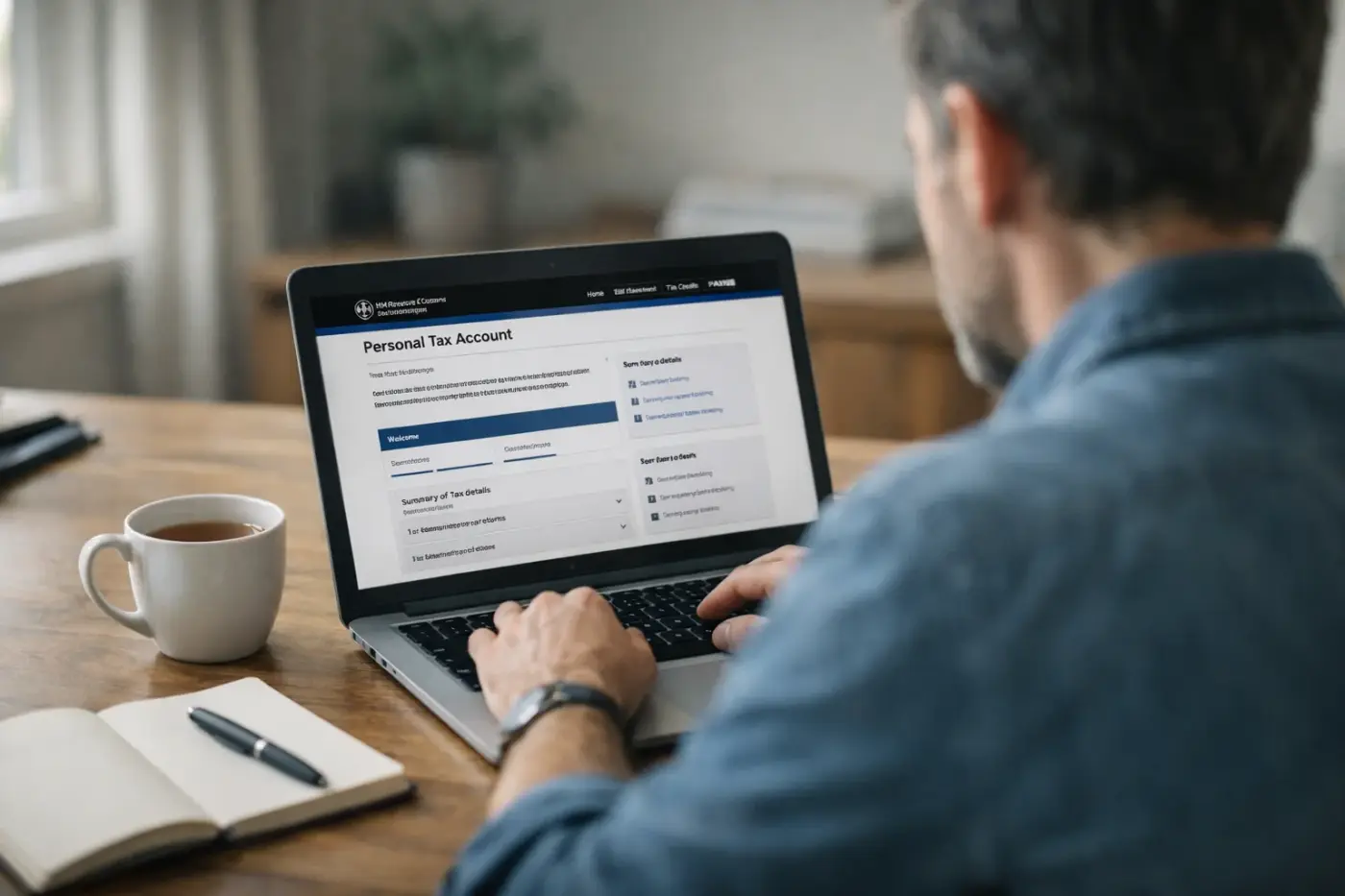
(For Illustrative Purposes Only)
Start by going to the official GOV.UK website. Search for “Personal Tax Account” or type the GOV.UK address directly into your browser.
Make sure you use the GOV.UK domain to avoid scams. Do not click on links from unknown emails or text messages.
On the correct page, select the option to sign in or set up your Personal Tax Account. This will take you to the secure Government Gateway sign-in screen, where you can begin the process.
2) Click ‘Create an account’ to start the registration

(For Illustrative Purposes Only)
Go to the GOV.UK page for a Personal Tax Account. Select ‘Create sign-in details’ or ‘Create an account’ to begin.
You will set up sign-in details through the Government Gateway. Enter your email address first. HMRC will send you a code to confirm it.
Next, create a password and set up recovery details. Keep your sign-in information safe, as you will use it each time you access your account.
Follow the on-screen steps carefully to move to the identity check stage.
3) Enter your email address and set a strong password
Enter an email address that you use regularly. HMRC will use it to send you security codes and important updates about your account.
Create a strong password that you do not use anywhere else. Use a mix of letters, numbers and symbols to make it harder to guess.
Keep your login details private. Store them safely and do not share them with anyone, as this helps protect your Personal Tax Account from unauthorised access.
4) Verify your email via the link sent by HMRC
After you submit your details, HMRC sends a message to the email address you provided. Open the email and look for the verification link.
Click the link to confirm that the address belongs to you. This step activates your email for your personal tax account.
If you do not see the message, check your spam or junk folder. Make sure you entered the correct email address during sign‑up.
Once verified, you can continue setting up your account and complete any remaining security steps.
5) Provide your National Insurance number
Enter your National Insurance number when prompted. HMRC uses this number to match your identity to your tax records.
You can find it on your payslip, P60, tax return, or National Insurance card. It usually starts with two letters, followed by six numbers and a final letter.
Type the number exactly as shown, without mistakes. If you cannot find it, you can use the GOV.UK service to retrieve it before you continue with your account setup.
6) Enter your Unique Taxpayer Reference if applicable
If you complete the self-assessment, you will have a Unique Taxpayer Reference (UTR). This is a 10-digit number that HMRC gives you when you register.
Enter your personal UTR when asked during the setup process. Make sure you use your own UTR, not a company UTR, if you run a limited company.
You can find your UTR in your Personal Tax Account, the HMRC app, or on previous tax returns and HMRC letters. It may be labelled as “UTR” or “reference”.
7) Confirm your identity using a passport or a driving licence
To complete your Personal Tax Account setup, you must confirm your identity. You can use a valid UK passport or a UK photocard driving licence.
Enter the details exactly as they appear on your document. HMRC may ask security questions based on your credit record or tax history.
In some cases, you will need to use the GOV.UK One Login app. You scan your photo ID and take a clear photo of your face to match it to your document.
Follow the on-screen steps carefully to avoid delays.
8) Set up two-factor authentication for security
You should turn on two-factor authentication (2FA) to protect your personal tax account. This adds an extra step when you sign in, beyond your password.
HMRC will ask you to confirm your identity using a second method. This may include a code sent to your mobile phone or a code generated by an authenticator app.
Follow the on-screen steps to link your chosen device. Enter the code when prompted to complete the setup.
Each time you sign in, you will need your password and the new code. This helps keep your account secure, even if someone knows your password.
9) Add your contact details, including phone number
Enter your current phone number and check that it is correct. HMRC may use this number to contact you about your tax or to confirm your identity.
Add your email address if the system asks for it. This helps you receive updates and security alerts about your personal tax account.
Make sure your address is up to date. Accurate contact details help HMRC send the right information to you and reduce delays if they need to reach you.
10) Link your bank details to claim tax refunds
Add your bank details to your Personal Tax Account so HMRC can pay refunds straight into your account. This is the quickest way to receive money you are owed.
Sign in and go to the section for repayments or refunds. Enter your UK bank account number and sort code carefully to avoid delays.
If you complete a self-assessment return, choose the option to have any repayment sent to your bank. Check your details before you submit them.
Benefits of setting up a personal tax account

A personal tax account lets you manage your tax in one secure online place. You can check your income tax record, update your details, and view messages from HMRC at any time.
You save time because you do not need to call or write to HMRC for routine tasks. The service is free and available 24/7.
With a personal tax account, you can:
- Check your PAYE tax code
- View your income and tax history
- Claim a tax refund
- Update your address or contact details
- Manage Self Assessment
- Track National Insurance contributions
- Access information about company car tax
You can also see what HMRC believes you have earned and paid in tax. This helps you spot errors early and request corrections before they become larger problems.
| Feature | How it helps you |
| Online access | Manage your tax at a time that suits you |
| Secure login | Protect your personal and financial data |
| Real-time updates | Keep your records accurate |
| Digital messages | Receive important notices quickly |
If you are self-employed, employed, or retired, you can use the same account. It keeps your tax records organised and easy to review throughout the year.
Security and Privacy Considerations
HMRC uses secure systems to protect your data, but you also play a key role in keeping your account safe. Strong passwords, careful sign‑in habits, and two‑factor checks reduce the risk of fraud and identity theft.
Keeping Your Information Safe
You access your Personal Tax Account through the official GOV. The UK website uses a secure, encrypted connection. Always check that the web address starts with https:// and shows the correct GOV.UK domain before you enter your details.
Create a strong password for your Government Gateway account. Use:
- At least 12 characters
- A mix of upper- and lower-case letters
- Numbers and symbols
- No common words or personal details
- Do not reuse this password on other websites.
Avoid signing in on public Wi‑Fi, especially in cafés or transport hubs. If you must use a shared device, log out fully when you finish and close the browser.
HMRC will never ask for your full password by email or text. If you receive a message asking for personal or banking details, treat it as suspicious and report it through GOV.UK.
Two-Factor Authentication on HMRC
HMRC uses two‑factor authentication (2FA) to add an extra layer of security to your account. After you enter your Government Gateway user ID and password, HMRC sends a security code to confirm it is really you.
You can usually receive this code by:
- Text message to your mobile phone
- Voice call
- Authentication app
Enter the code when prompted to complete the sign‑in process.
Keep your contact details up to date in your account settings. If you change your phone number and do not update it, you may struggle to access your account.
Do not share your security code with anyone. HMRC staff will not ask for it. If someone requests your code, they are likely trying to access your account without permission.